
Canteen
About the CIS canteen.
If you have any questions or concerns in the coming weeks, please contact our Admissions Team at admissions@cis.edu.sg or call us on +65 6734 8088.
Sodexo is the school appointed caterer at CIS. This global catering company has a lot of experience in catering to international schools and understands the needs of diverse international school communities.
The Red Dot café serves hot and cold drinks, “grab and go” snacks and meals as well as a selection of cakes and snacks. Breakfast, available from 7.30am Monday through Friday, and daily specials are cooked to order.
Facilities and operating hours
Canteen
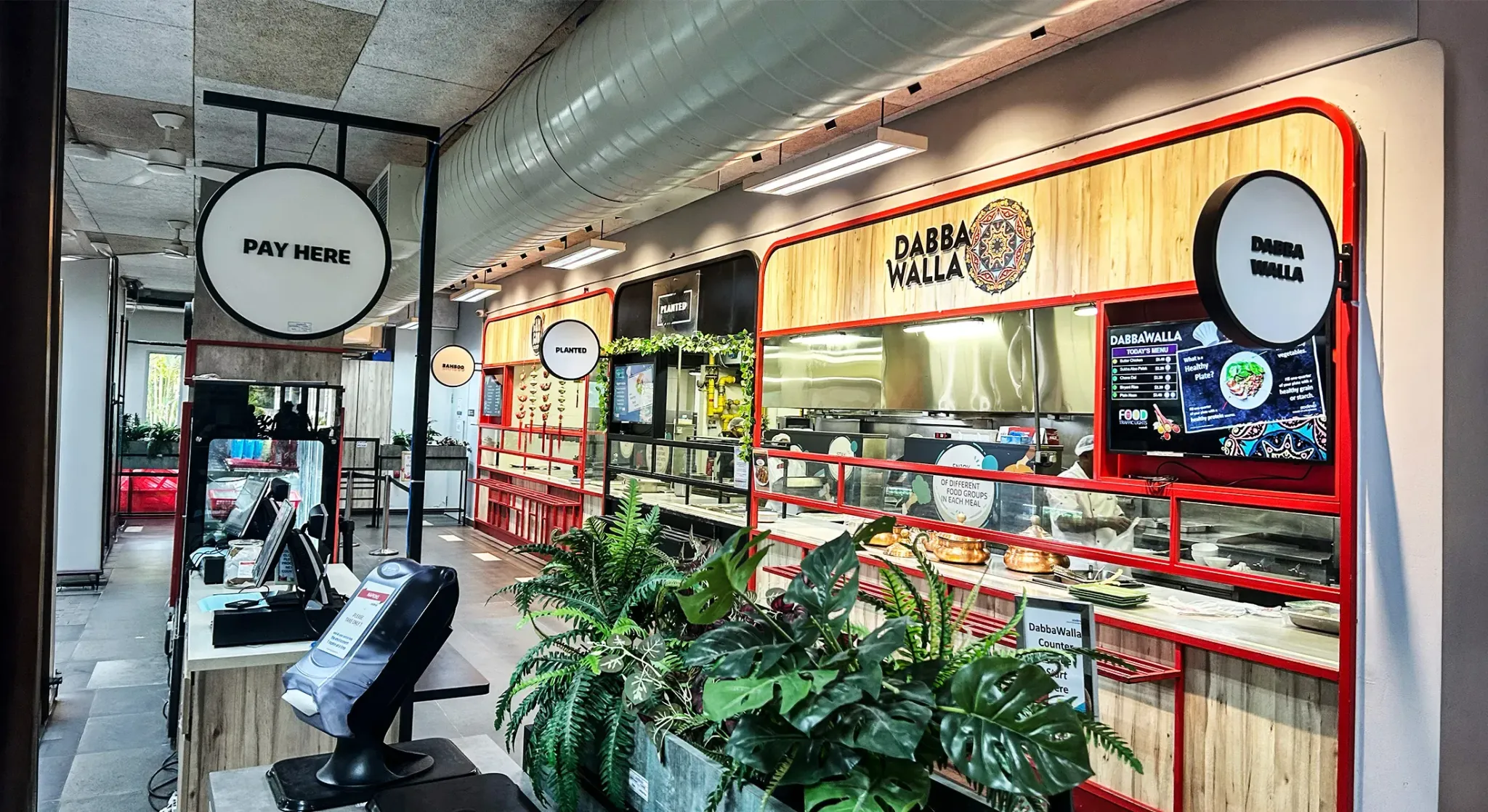
Two large canteens are open on school days between 11.30am and 1.40pm. There is also a small cafe on level 5 for secondary students that is open from 8am to 11am on school days.
Red Dot Cafe
Red Dot cafe, which can accommodate over 120 patrons, is a hub of the school community. Students from nursery to grade 11 can use the cafe before and after school, while parents, staff and grade 12’s can use it at any time.
All operating hours are subject to change.
Menu
The canteen offers a daily variety of lunch options, including Asian dishes, soups, Indian tandoor and curries, pasta, pizza, plant-based meals, live cooking stations, Western cuisine, a salad bar, and vegetarian choices. In addition, a selection of sandwiches and sushi is available. The canteen follows a strict no pork, no lard policy, and all meat is sourced from Halal-certified providers
The Red Dot Café serves hot and cold beverages, “grab and go” snacks and meals, and a selection of cakes and pastries. Breakfast is available from 7:30 am, Monday to Friday, and daily specials are cooked to order.
Order, purchase and pay
Nursery to grade 3, grades 3 and 4 Foundation programme
Snacks, drinks and lunches for students from nursery to grade 3 must be pre-ordered via Flexischools (access is via My.CIS).
- Nursery to senior kindergarten (SK) lunches are included in the school fees. No payment is needed for online orders. Snacks are available to purchase.
- Grades 1 to 3 parents must top up their accounts to order meals for their children.
Students in Grades 4 to 12, including those in the Grades 5 to 8 Foundation Programme , use their stored-value student cards to pay for items in the canteen.
Parents, staff, and visitors can pay using a credit card and topping up their online wallet.
Contact details
You can contact Sodexo at foodservices@cis.edu.sg.
Flexischools and ID cards
How to top up your Flexischools account (nursery to grade 3)
To order snacks or lunch for your child you will need to top up your campus online account. You can do this via:
- cash or credit card* at the kiosk located at the campus lobby level 1.
- credit card* using the Flexischools system
From August 2024, nursery to senior kindergarten lunches remain included in school fees. Morning and afternoon snacks are available to purchase.
How to top up your student ID card (grades 4-12)
Student ID cards are stored value cards and serve as an official student ID. As they remain the property of Sodexo services, cards must be returned to the school when a student leaves. Cards can be topped up via:
- top up machine in the atrium (cash, debit card and credit card)
- at the Sodexo office on campus (cash or credit card*)
- by credit card* using the Flexischools
* Please note that all online payments attract a surcharge.
Lost or damaged cards
If a card is damaged or lost, students must visit the Sodexo administration office at their campus, complete an ID card replacement form and pay a $25 card replacement fee.
An official receipt will be issued, and the new card can be collected in three working days.
While their new card is being produced, students can approach the canteen cashier (students must visit cashier 1 in the level 1 canteen) for assistance with purchases.
If you have questions or need assistance, contact at foodservices@cis.edu.sg.
Flexischools parent benefits
The Campus Online system allows parents to:
- see what food their child is purchasing
- restrict specific food items
- set a daily spending limit
- manage the value that is available on their child's card.
Flexischools Frequently Asked Questions & Guide
1. Why is my student’s class not listed?
If your student’s class is not listed, it may be because the school has not yet updated the class list for the year. Some schools may take a little longer to complete this process.
If you have any questions regarding your school’s class list, please contact Sodexo at foodservices@cis.edu.sg
2. How do I close or cancel my Flexischools account?
Using the Flexischools App
- Select the Profile icon from the navigation bar.
- Select Manage my details.
- Scroll down and select the red Close my Flexischools Account button.
- You will be prompted to notify the school to process your balance refund.
Using the Desktop Site
- Login into your account
- Click on the Profile tab.
- Select My Details.
- Select the Close Account button.
3. How do I turn on low balance email alerts?
You can choose to receive an email alert when your Flexischools parent wallet balance drops below a selected amount.
Using the Flexischools App
- Navigate to Profile.
- Tap Preferences.
- Under Account Activity Emails in Communication Preferences, turn ON the toggle next to “When my wallet balance drops below:”
- Enter your preferred dollar amount.
Using the Desktop Site
- Login into your account
- Navigate to Profile.
- Select Preferences.
- Under Account Activity Emails in Communication Preferences, turn ON the toggle next to “When my wallet balance drops below:”
- Enter your preferred dollar amount.
4. How do I turn off low balance email alerts?
Using the Flexischools App
- Navigate to Profile.
- Tap Preferences.
- Under Account Activity Emails in Communication Preferences, turn OFF the toggle next to “When my wallet balance drops below:”
Using the Desktop Site
- Login into your account
- Navigate to Profile.
- Select Preferences.
- Under Account Activity Emails in Communication Preferences, turn OFF the toggle next to “When my wallet balance drops below:”
5. How do I cancel an order?
Using the Flexischools App
- Select the Orders icon from the bottom navigation bar.
- Select the relevant order.
- Tap the Cancel Order button at the bottom of the page.
- Tap Yes to confirm the cancellation.
Your order will be cancelled and the funds will be returned to your Flexischools wallet. If you are unable to cancel the order, please refer to the pop-up message and contact Sodexo using the information provided.
6. Can I opt out of marketing messages and still purchase third-party services?
Yes. You can opt out of receiving marketing messages while still being able to review and purchase offers from third-party service providers.
7. How do I request a refund of my account balance?
If you would like to keep your account open and request a refund of your current balance, please contact Sodexo at foodservices@cis.edu.sg and the team will be happy to assist you with the refund process.
8. I’m receiving the error message “We are not able to log you in at this time. This is likely due to system maintenance.” What should I do?
This issue can usually be resolved by clearing your browser’s cache and cookies before trying to log in again.
Google Chrome
- Open Chrome browser.
- Click the three dots (⋮) in the top-right corner.
- Select Settings.
- Go to Privacy and Security → Clear Browsing Data.
- Ensure the following options are selected:
• Cookies and other site data
• Cached images and files - Click Clear Data.
Microsoft Edge
- Open Edge browser.
- Click the three dots (⋮) in the top-right corner.
- Select Settings → Privacy, Search, and Services.
- Under Clear Browsing Data, click Choose What to Clear.
- Ensure the following options are selected:
• Cookies and other site data
• Cached images and files - Click Clear Now.
Mozilla Firefox
- Open Firefox browser.
- Click the three lines (≡) in the top-right corner.
- Select Settings → Privacy & Security.
- Scroll to Cookies and Site Data → Click Clear Data.
- Ensure the following options are selected:
• Cookies and Site Data
• Cached Web Content - Click Clear.
MacOS Safari
- Open Safari browser.
- Select Safari → Settings → Privacy.
- Click Manage Website Data.
- Select the relevant websites you want to remove data from.
- Click Remove or Remove All.
Microsoft Internet Explorer
Please note that Internet Explorer is outdated and no longer supported by Microsoft. We recommend using a modern browser such as Microsoft Edge or Google Chrome for better security and performance.
- Open Internet Explorer browser.
- Press Ctrl + Shift + Delete to open the Delete Browsing History window.
- Select Temporary Internet files and website files.
- Click Delete.
9. Can multiple parents link to the same student card?
No. A student card can only be linked to one parent account at a time.
This is because purchases made using the student card will draw from the available balance of the linked parent account.
10. How do I change my payment details?
Using the Flexischools App
- Select the Wallet icon.
- Tap on Payment Method.
- Choose another saved payment method or select Card to add a new one.
Using the Desktop Site
- Login into your account
- Select Top Up Wallet from the left-hand side of the screen.
- Choose another saved payment method or select Card to add a new one.
Please note that this will not affect your current account balance. You will need to add a valid payment method before topping up your account again.
11. How do I update my personal information?
Contact Sodexo team at foodservices@cis.edu.sg to update your personal details.
12. How do I add a student to my account?
CIS will automatically add your student to your account. If your student does not appear in your account, please contact CIS IT team directly for assistance.
13. How do I change my student's class?
CIS will update your student’s class information. If you believe your child has been assigned to the wrong class, please contact CIS IT team directly for assistance.
14. How do I request a refund for an order?
If you require a refund for a past order or event, please contact Sodexo directly at foodservices@cis.edu.sg. They are able to process a refund for you directly from their Flexischools portal.
15. Why am I seeing an incorrect balance or insufficient funds message when paying with a student card?
If the student card shows insufficient funds, it may be because your child has already used the maximum spending amount allowed for the day, even if there are still funds available in the parent wallet. To check how much your child can still spend, please refer to the Available Balance in your account.
Using the Flexischools App
- Select Wallet from the bottom navigation bar.
- Your Available Balance will be shown under the Parent Wallet section.
Using the Desktop Site
- Login into your account
- Refer to the bottom of the left-hand menu.
- You will see both Available Balance and Account Balance.
- Available Balance is the amount currently available for spending.
- Account Balance is the total amount in your Parent Wallet, including any outstanding orders that have not yet been processed.
Please note that top-ups made using a credit or debit card should update instantly. If your available balance still appears incorrect, there may be a temporary connectivity issue between the Flexischools system and the Point-of-Sale (POS) network. Please check your internet connection and try again.
16. How do I top up my wallet?
Using the Flexischools App
- Select Wallet.
- Tap Top Up.
- Enter your preferred top-up amount.
- Select your preferred payment method.
- Complete the transaction.
Using the Desktop Site
- Login into your account
- Select Top Up Wallet from the left-hand menu.
- Enter your preferred top-up amount.
- Select your preferred payment method.
- Complete the transaction.
You can also set up automatic top-ups from this screen. This feature will automatically add funds to your wallet from your selected payment method when your balance falls below the trigger amount you set.
17. I need to cancel my order but am unable to do so. What should I do?
If you are unable to cancel your order through the Flexischools App, it may mean that the order has already been received and processed by Sodexo.
Please contact Sodexo directly at foodservices@cis.edu.sg for assistance with any order changes or cancellation requests. Contact details can be found in your order confirmation email.
18. How do I add a daily spend limit?
Using the Flexischools App
- Select the Profile icon from the bottom navigation bar.
- Select the relevant student to expand their details.
- Scroll down and enter your preferred amount under Daily Spend Limit.
- Tap Save once you have finished.
Using the Desktop Site
- Login into your account
- Select Students and choose the relevant student to expand their details.
- On the right-hand side of the page, enter your preferred amount under Daily Spend Limit.
- Click Save to confirm the changes.
19. How do I place an order?
Using the Flexischools App
- Tap the Order Food button at the top of the home screen.
- Select the student you would like to place the order for.
- Choose the relevant service and order date.
- Add your selected items to the order.
- Tap Checkout & Pay to complete your order.
If you would like to exit the order screen at any time, tap the < icon in the top-left corner of the screen.
20. I have not received my order. What do I do?
First, please check whether you received an order confirmation email. If you received a confirmation email, please contact your Sodexo directly at foodservices@cis.edu.sg, as all items are prepared and distributed by them.
You should also check whether payment was successfully processed in your Flexischools account history. In some cases, funds may have been added to the wallet, but the order itself was not fully completed.
If your order was successfully placed and you still have not received it, please contact Sodexo directly for further assistance at foodservices@cis.edu.sg.
21. How do I manage my orders?
Using the Flexischools App
- Select Orders from the bottom navigation bar to access your Order History.
- Select the order you would like to manage.
- On the order details page, you can:
- Send Receipt: Resend the order confirmation to your email.
- Cancel Order: Cancel the order if it has not yet been prepared by the supplier.
Using the Desktop Site
- Login into your account.
- Select Orders from the side menu to access your Order History.
- Select the order you would like to manage.
- On the order details page, you can:
- Send Receipt: Resend the order confirmation to your email.
- Cancel Order: Cancel the order if it has not yet been prepared by the supplier.
If the supplier has already started preparing your order, you will need to contact them directly to request a cancellation.
22. How do I setup automatic top ups?
Please note that automatic top-ups are not available for QR-based payment methods.
Using the Flexischools App
- Select Wallet.
- Turn on the toggle next to Automatic Top-Ups.
- Enter the required details.
- Tap Save to confirm your settings.
Using the Desktop Site
- Login into your account
- Select Top Up Wallet.
- Select Set Up Automatic Top-Ups.
- Enter the required details.
- Click Save to confirm your settings.
23. There was an issue with my order, what do I do?
Flexischools is an online ordering and payment platform and is not involved in the preparation or delivery of items. If there is an issue with your order, please contact Sodexo at foodservices@cis.edu.sg for assistance.
24. I forgot my password. What should I do?
Using the Flexischools App
- From the login screen, tap Forgot your password?
- Enter your registered email address.
- A password reset link will be sent to your email address.
- Follow the instructions in the email to reset your password and log in again.
Using the Desktop Site
- Login into your account at (website URL to be inserted once it is ready and before system go-live)
- From the login screen, click Forgot your password?
- Enter your registered email address.
- A password reset link will be sent to your email address.
- Follow the instructions in the email to reset your password and log in again.
Please remember to check your junk or spam folder if you do not receive the email.
25. How do I check my account history?
Using the Flexischools App
- Select Wallet.
- Tap Transactions to view your transaction history.
Using the Desktop Site
- Login into your account.
- Select the Profile tab.
- Select Transactions to view your transaction history.
You can use the date range filter to expand or refine your search, and use the navigation controls at the bottom right of the screen to browse through your transaction history.
26. How do I register for a Flexischools account?
You can contact CIS IT team to enable an account for you.
27. What are the benefits of topping up my Flexischools account?
If you regularly use a credit or debit card to pay for orders, topping up your Flexischools wallet can help reduce payment surcharges while providing a faster and more convenient checkout experience. Each card transaction may include a payment surcharge, which often contains a fixed fee charged per transaction. By topping up your wallet with a larger amount in advance, you can reduce the number of individual payment transactions and potentially lower the total surcharges incurred over time. Using a pre-paid wallet balance also makes future purchases quicker and more seamless.
28. Items in my order were missing or incorrect
Flexischools is an online ordering and payment platform that is not involved in the preparation or delivery of any items. Please contact Sodexo at foodservices@cis.edu.sg
29. How can I place multiple orders at once?
- Log in to Flexischools via the app or desktop site.
- Select Order Food.
- Choose the student you would like to place an order for.
- Select the relevant service (for example, Lunch).
- Select the date for the order.
- Add your selected items to the cart.
- Repeat the same steps for additional students, services, dates, or orders as needed.
Once you have added all your orders, you can review them together in your cart before checking out. You may also edit individual orders by adding or removing items as required.
When you are ready, complete the checkout process and you will receive a single order confirmation email covering all orders placed.
30. I want to close one of my children's accounts
Your child’s account will usually be removed automatically once they leave their current school. If you would like the account to be removed earlier, please contact CIS IT team.
31. Can I top up my Flexischools wallet using my credit card?
Yes. You can top up your Flexischools Parent Wallet using your credit card.

Canadian International School
Follow us